Reporting in Dynamics 365: Which Option, When
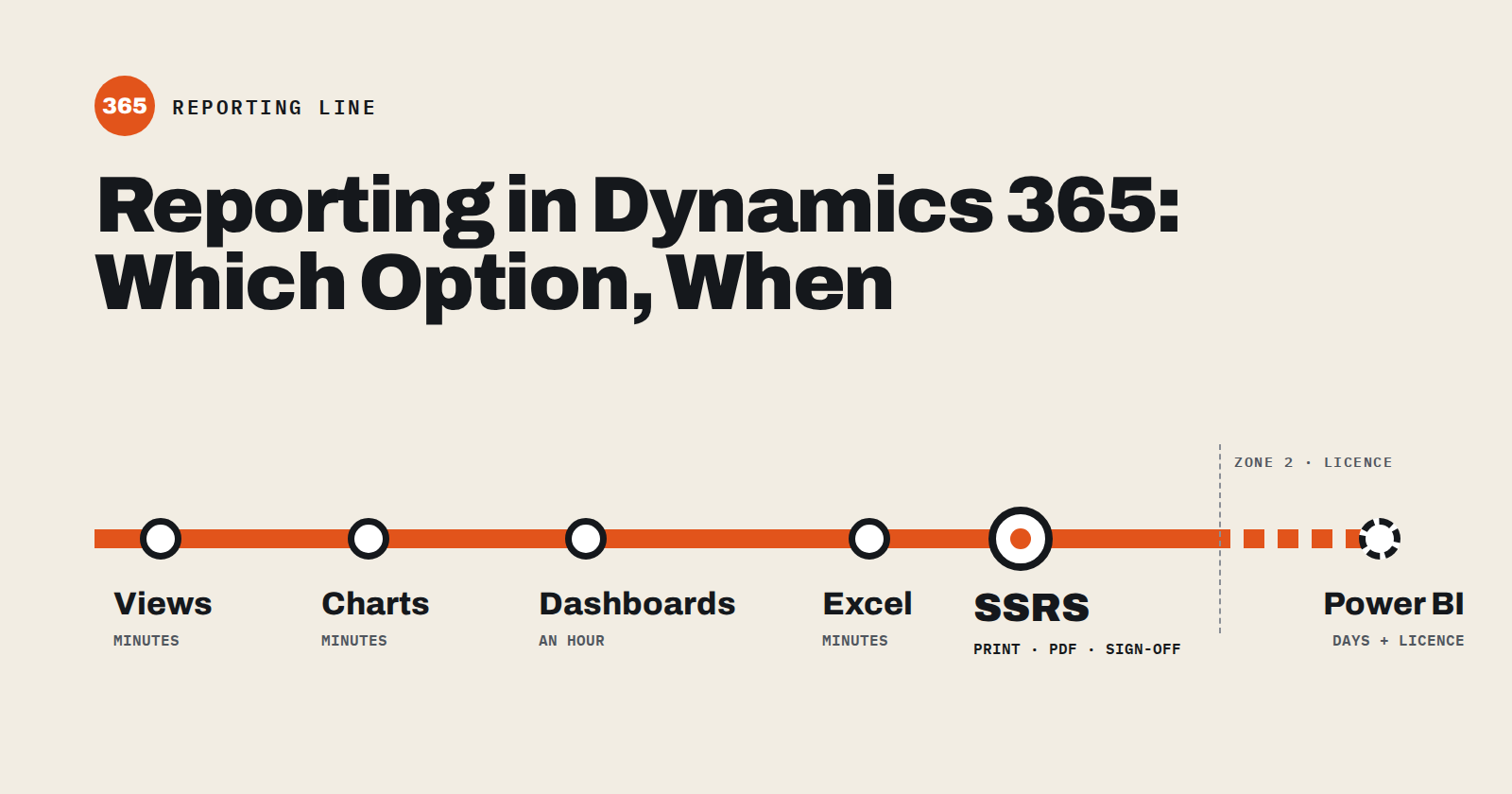
Dynamics 365 gives you six ways to report on your data, and most teams reach for the wrong one first. They build a Power BI workspace when a saved view would do, or they fight with a chart when the business really needs a printable PDF with subtotals.
This post walks through each option on the same data so you can see the difference. I built a small lending pipeline in a Dynamics 365 Sales trial, modelled on a real commercial real estate CRM I support: 41 deals with a loan request, fee points, a potential fee, a 14-step deal status, a broker and a target close date. Every screenshot below comes from that org.
One note before we start: the trial was created in India, so money shows as ₹ even though the deal names say $. The reporting behaviour is the same in any currency.
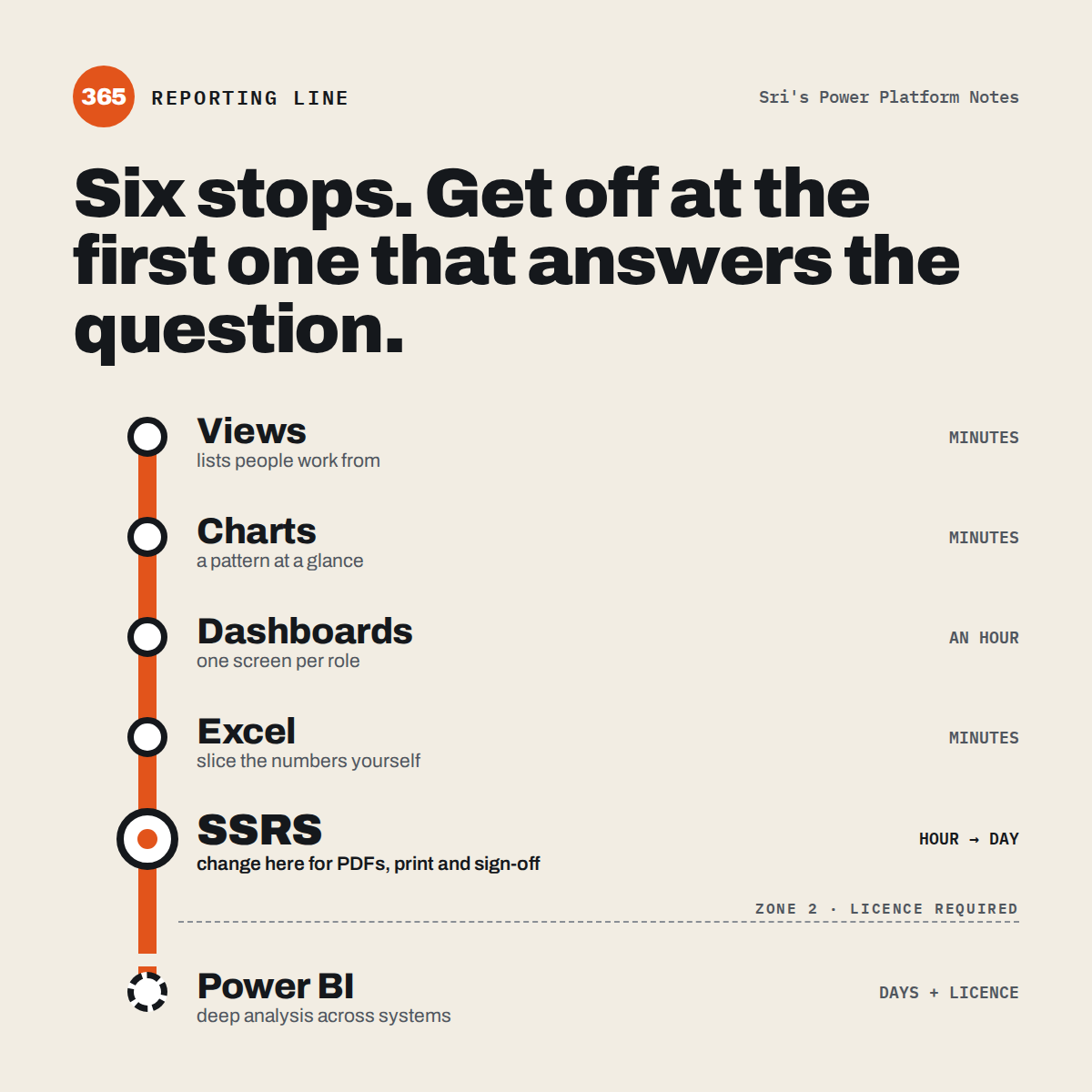
The options at a glance
Views and charts cover day-to-day questions. SSRS covers anything that has to be printed, emailed or signed off. Power BI covers analysis across many tables or systems.
| Option | Best for | Who builds it | Extra licence | Prints / exports well | Effort |
|---|---|---|---|---|---|
| Views | Filtered lists people work from every day | Any user (personal) or maker (system) | No | Excel export only | Minutes |
| Charts | Quick visual on top of a view | Any user or maker | No | No | Minutes |
| Dashboards | One screen of charts, lists and KPIs for a role | Any user or maker | No | No | An hour |
| Excel export / templates | Ad hoc analysis and one-off number crunching | End users | No | Yes, it is Excel | Minutes |
| SSRS reports | Pixel-perfect, paginated output with groups and subtotals: PDF, Word, Excel | Users (Report Wizard) or developers (Visual Studio + FetchXML) | No | Yes: PDF, Word, Excel, PowerPoint, CSV | An hour (wizard) to a day (custom) |
| Power BI | Deep analysis, many tables or sources, drill-down, trends | Analysts / developers | Yes, Power BI Pro or Premium per viewer | Yes, via Power BI paginated reports | Days |
Each option in practice
1. Views
A view is a saved query with chosen columns, filters and sort order. For our pipeline I made a "Demo Deal Pipeline" view showing every active deal with its status, loan request, fee and target close date. Users can filter it, sort it, and export it to Excel in one click.
Use it when people need a working list: "my deals closing this month", "everything in underwriting".
Skip it when you need totals per group, a layout for printing, or data from unrelated tables.
2. Charts
A chart sits on top of a view and aggregates one or two fields. The Sales Hub opportunity grid below combines a chart (deals by close date and probability) with the list underneath. I also added a "Potential Fee by Deal Status" bar chart that sums fees per stage.
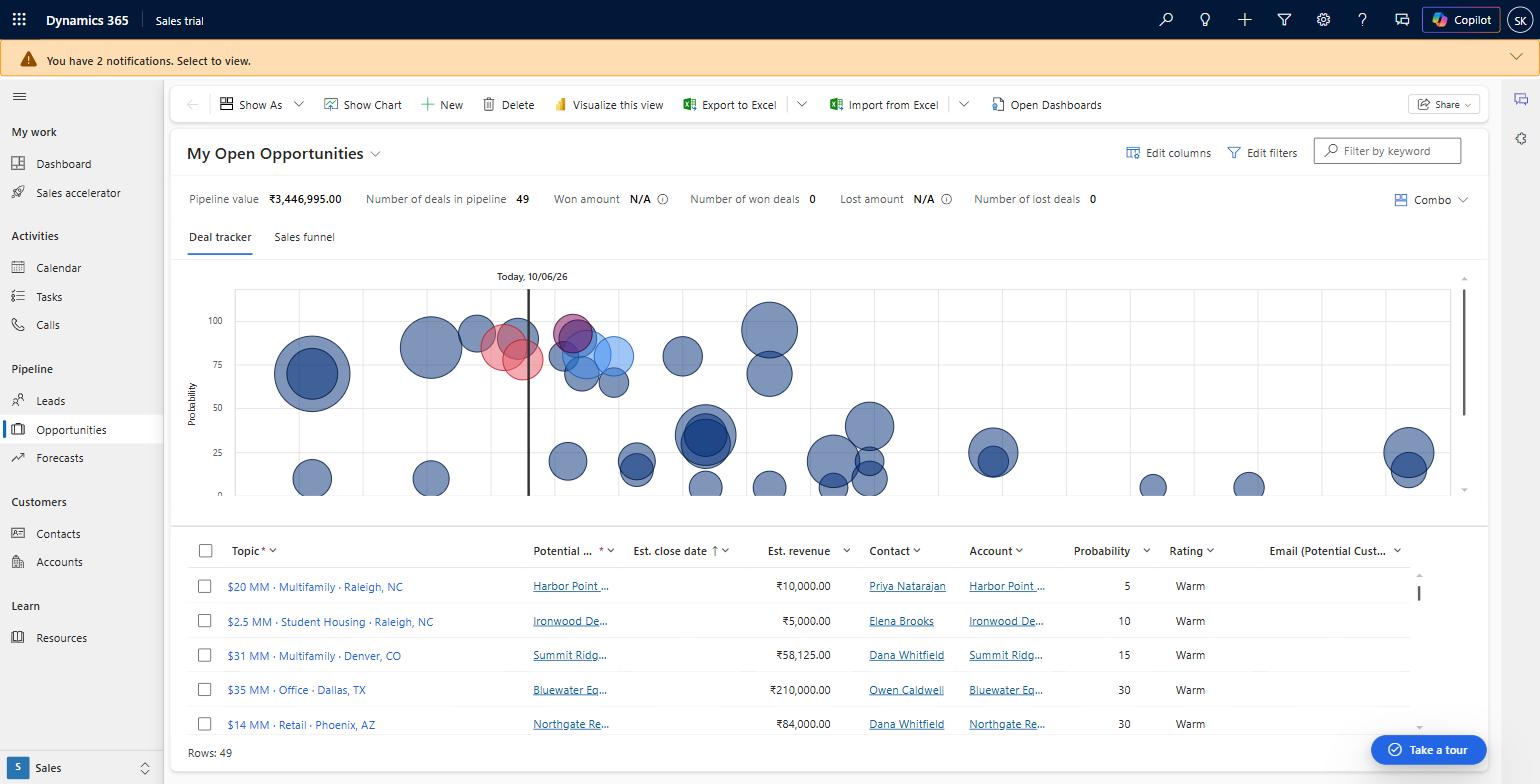
Use it when someone wants to see a pattern at a glance: pipeline by stage, deals by owner.
Skip it when you need more than two measures, conditional formatting, or anything printable.
3. Dashboards
A dashboard puts up to six charts, lists and web resources on one page. It is where a sales manager lands every morning. Dashboards are only as good as the views and charts behind them, so build those first.
Use it when a role needs one screen with the numbers they check daily.
Skip it when the audience is outside the CRM, such as a lender, investor or auditor who wants a document.
4. Excel export and Excel templates
Any view can go to Excel (up to 100,000 rows in this org). Excel templates go further: you save a workbook with pivots and charts once, and every user can generate it from live data.
Use it when a power user wants to slice numbers their own way, or finance needs a recurring workbook.
Skip it when the output must look the same every time or be locked down. Exports go stale the moment they are saved.
5. SSRS reports
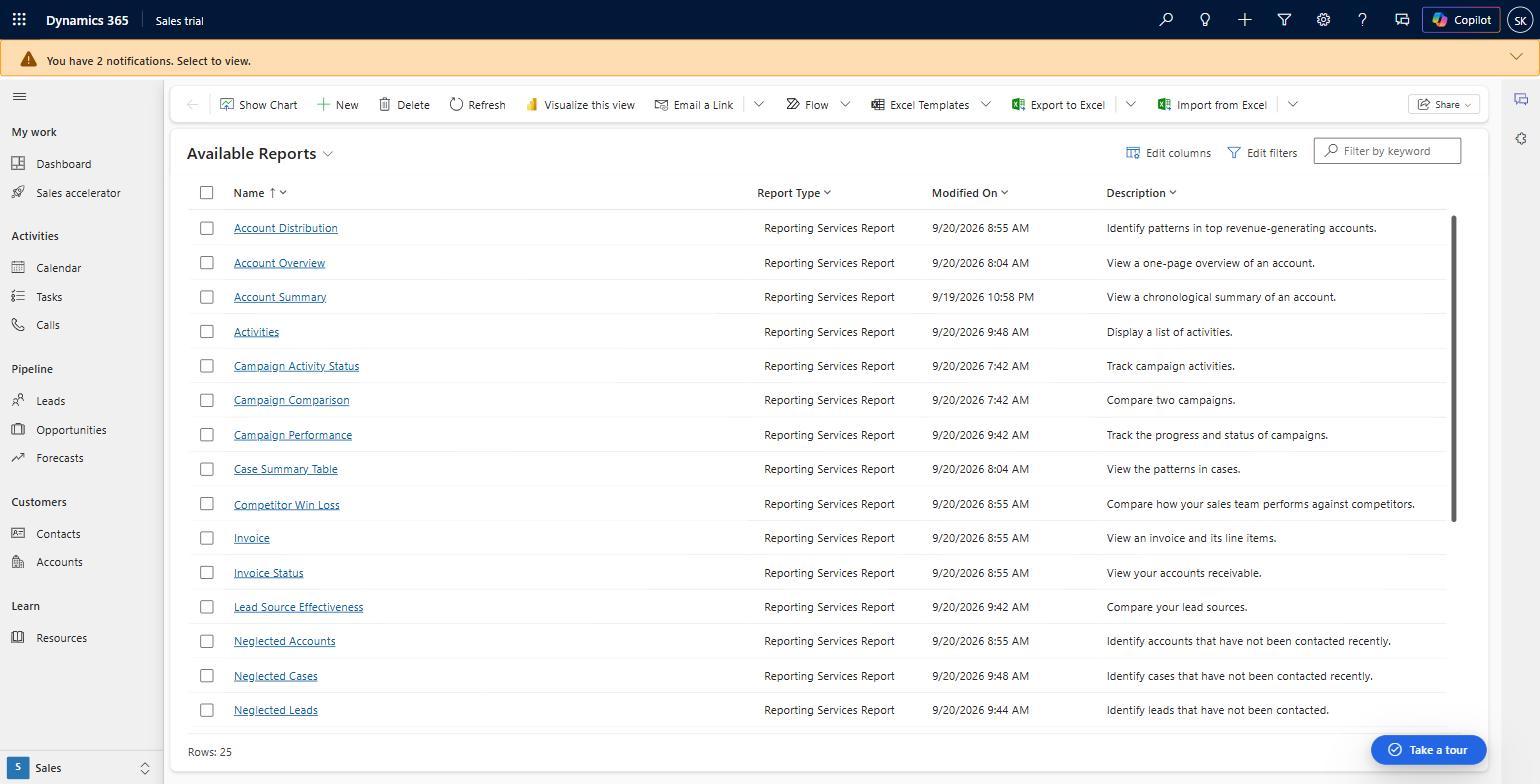
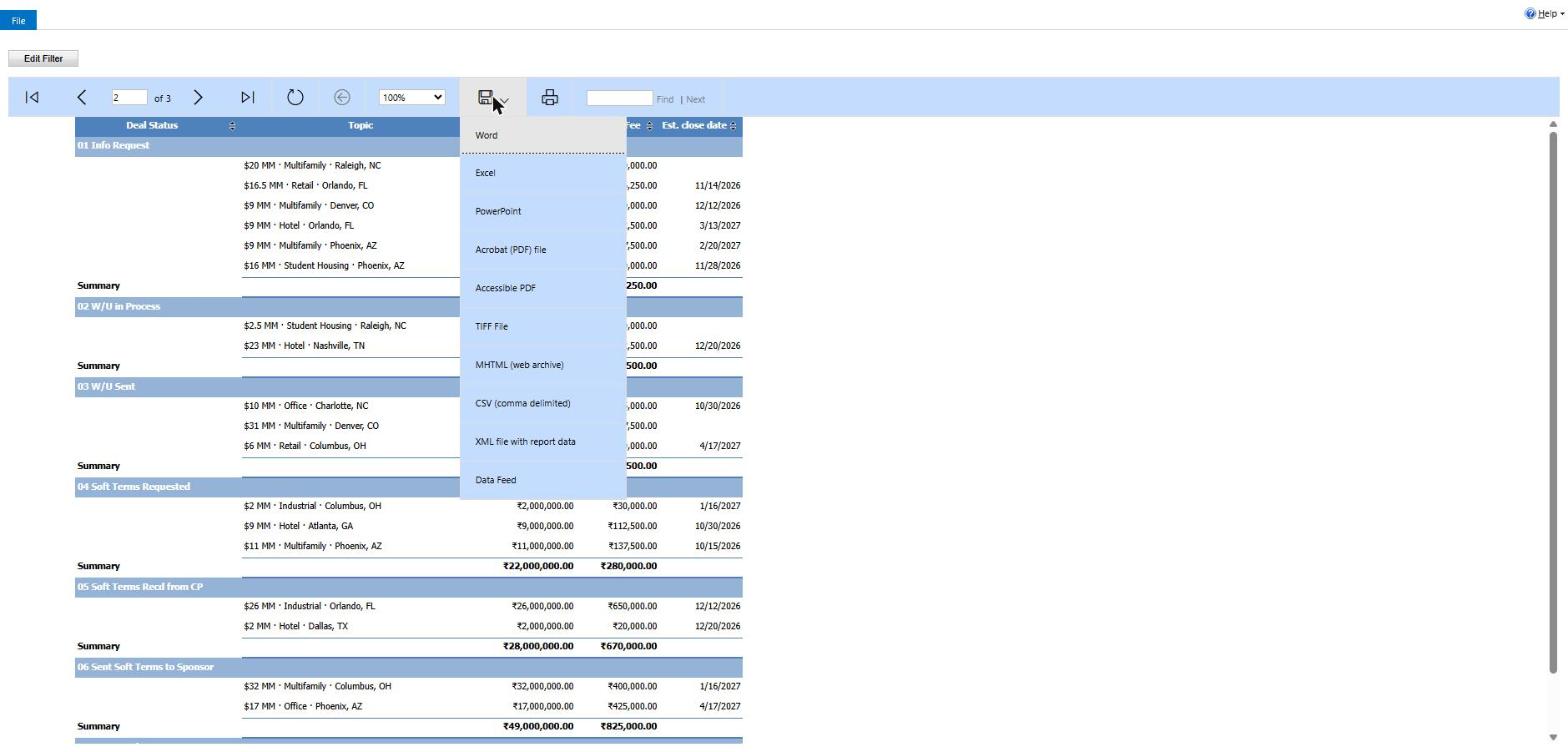
SQL Server Reporting Services is the classic "report" in Dynamics 365. It produces paginated output with headers, groups, subtotals and page numbers, and exports to PDF, Word, Excel, PowerPoint and CSV. In the online version, SSRS reports query data with FetchXML only. There is no direct SQL access.
The trial ships with 54 ready-made SSRS reports, and you can add your own in two ways:
Report Wizard, inside the app, no code. Good for grouped lists with totals and a simple chart.
Visual Studio + Report Authoring Extension, for full control: parameters, expressions, sub-reports, custom layout.
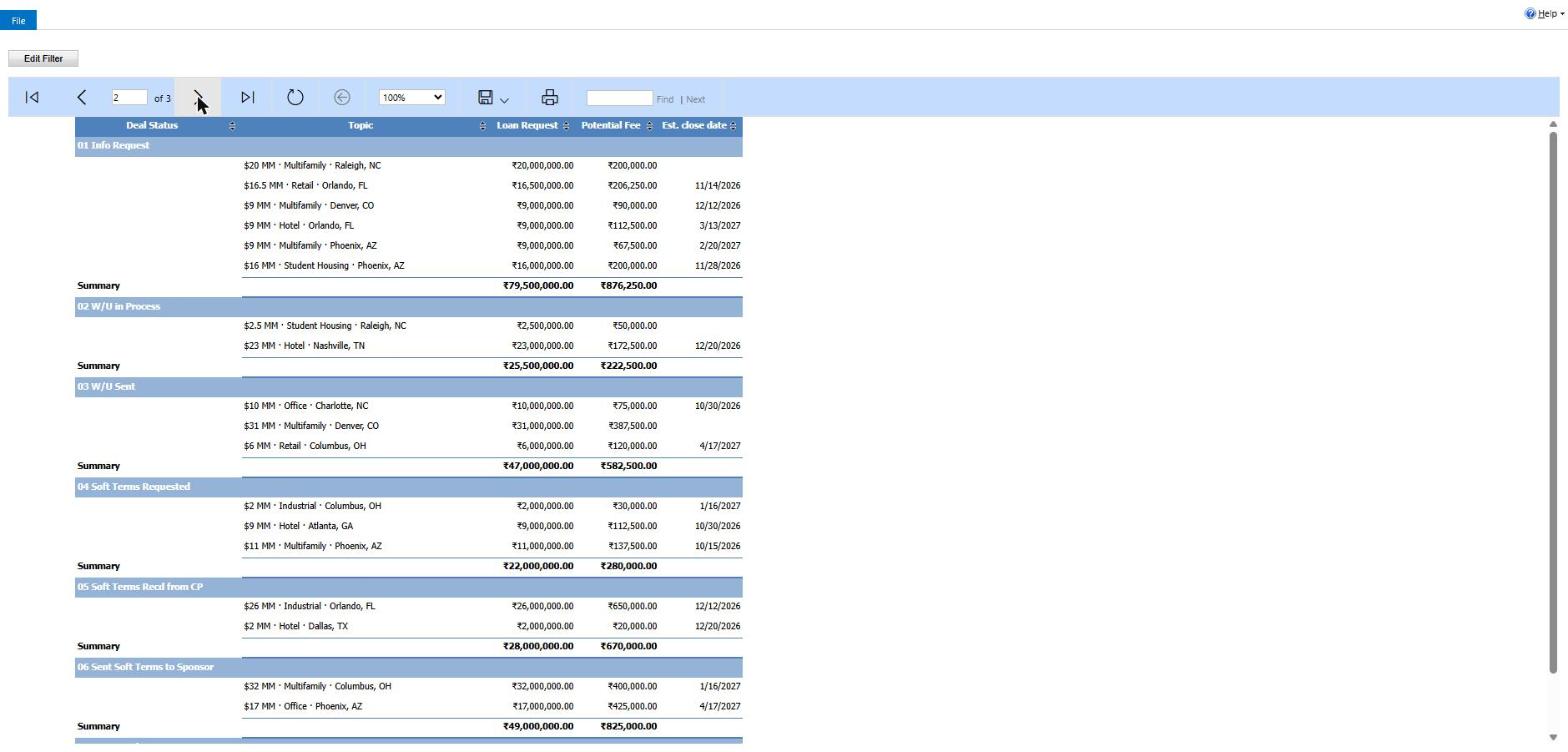
Here is the report I built with the wizard in about five minutes. It groups our deals by status with summed loan requests and fees:
And the export options every SSRS report gets for free:
Use it when the output is a document: a weekly pipeline pack, a deal summary for a lender, a printable invoice, anything with subtotals per group.
Skip it when users want to explore and drill. SSRS is built for reading, not interacting.
6. Power BI
Power BI is the analysis tool. It handles many tables and outside sources, time intelligence, drill-down and rich visuals, and it can be embedded on Dynamics dashboards and forms. The catch is licensing: anyone who views a Power BI report needs a Power BI Pro or Premium Per User licence, unless the workspace is on Premium or Fabric capacity. For that reason I did not enable it in this demo org.
Use it when leadership wants trends across quarters, data from several systems, or self-service analysis.
Skip it when a view, chart or SSRS report already answers the question, or when viewers are not licensed.
How to choose
Start with the cheapest tool that answers the question, and move right only when it can't.
| If the ask sounds like… | Use |
|---|---|
| "Show me my open deals in underwriting" | View |
| "How much fee is sitting in each stage?" | Chart on a view |
| "I want one screen I open every morning" | Dashboard |
| "Let me play with the numbers" | Excel export or Excel template |
| "Send the lender a PDF every Monday with totals per stage" | SSRS report |
| "Compare this year's pipeline with last year's, by broker and region" | Power BI |
Three rules that save the most time:
Build the view first. Charts, dashboards, Excel templates and the Report Wizard all start from a view, so a good view pays off four times.
Printable means SSRS. If the words PDF, print, sign-off or "looks the same every time" come up, stop trying to bend a dashboard into a document.
Count the viewers before choosing Power BI. Every viewer needs a licence unless you have capacity. Ten managers is a budget line; two hundred field staff is a different conversation.
SSRS and Power BI are not either/or. Many teams use SSRS for the documents that leave the building and Power BI for analysis that stays inside.
What we picked for the deal pipeline
For our lending pipeline the answer was a mix. Brokers and analysts work from views. The sales lead gets a dashboard with the fee-by-stage chart. The weekly pipeline pack that goes to partners is an SSRS report, because it has to look the same every Monday and land as a PDF.
In the next post I build that SSRS report step by step, first with the no-code Report Wizard and then in Visual Studio with FetchXML, with a screenshot for every click.
Sources
Reporting overview for model-driven apps, Microsoft Learn
Report writing environment using SQL Server Data Tools, Microsoft Learn
Power BI paginated reports FAQ (licensing), Microsoft Learn
About the author
- I'm Sri, a Trainee Software Engineer working with Dynamics 365 and the Power Platform at Nalashaa Solutions. Three months in, and most of what's actually helped me build faster came from breaking something and figuring my way back out, not from the docs. This is where I write those down: the workarounds, the settings buried too deep, the debugging tricks that save twenty minutes once you know them. No polished tutorials, just what actually happened.
Comments
Join the discussionNo comments yet. Be the first to comment.